





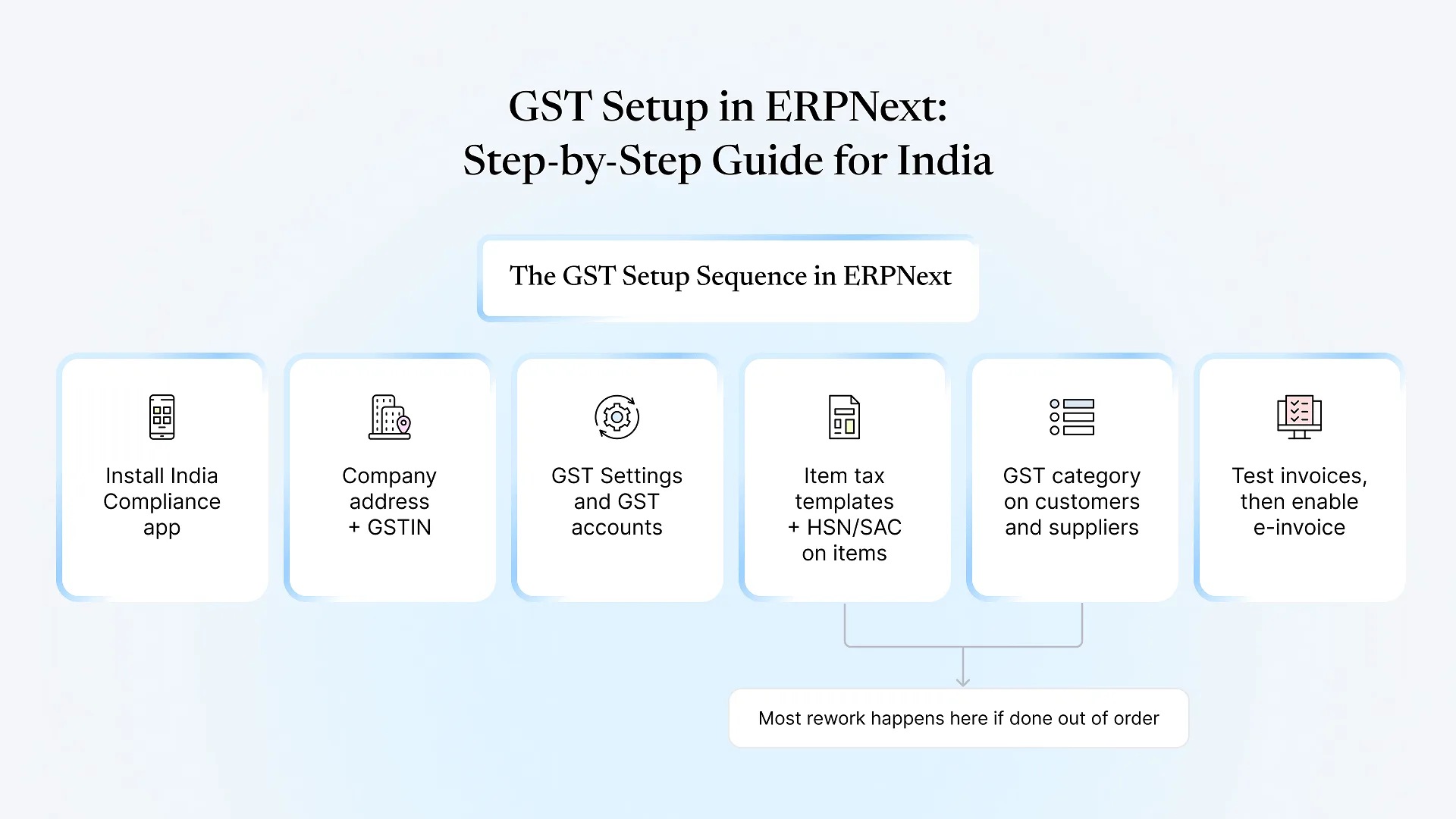
GST setup in ERPNext: the order that matters
Step 1: Install the India Compliance app
Since version 14, ERPNext’s India-specific GST features live in a separate app called India Compliance, not in ERPNext itself. On a self-hosted bench it’s installed with bench get-app and then added to your site. On Frappe Cloud, you add it from the apps list.
If you’re upgrading from version 13, which had GST built in, plan the migration as its own small project. Older custom fields and reports don’t always map cleanly.
Step 2: Set up the company address with GSTIN
ERPNext links your GSTIN to an Address record, not to the Company record directly. Create the company’s billing address, enter the GSTIN, and make sure the state is correct. The state decides whether ERPNext treats a sale as intra-state (CGST + SGST) or inter-state (IGST).
If you have registrations in more than one state, each GSTIN needs its own address record. Each branch’s transactions also need to pick the right one. Multi-GSTIN companies most often get this wrong first.
Step 3: Review GST Settings and GST accounts
The India Compliance app creates the GST ledger accounts and fills in GST Settings for you. You’ll see rows for output tax, input tax and reverse charge, each mapped to separate CGST, SGST, IGST and cess accounts.
Don’t accept these defaults without checking them. If your accountant already keeps differently named GST ledgers (common after a Tally migration), map those ledgers here. Don’t keep two parallel sets of accounts.
Configuring items, tax templates and HSN codes
ERPNext uses Item Tax Templates to decide the GST rate on each line. The app creates the standard templates, and you assign the right one to each item or item group.
Every item also needs an HSN code (goods) or SAC code (services). GST Settings lets you enforce HSN validation, so an invoice with a missing or too-short code can’t be submitted. Turn this on early. Fixing HSN codes on items is easy; amending filed returns isn’t.
A practical shortcut is to set the tax template and HSN code at the Item Group level where the whole group shares a rate. Then override only the exceptions on individual items.
GST configuration for customers and suppliers
| GST category | Typical use | What it changes |
|---|---|---|
| Registered Regular | B2B customers/suppliers with a GSTIN | Invoices reported as B2B; input tax credit flows |
| Unregistered | Retail and small buyers without GSTIN | Reported as B2C |
| Registered Composition | Composition-scheme businesses | No tax charged on their sales to you |
| SEZ | Units in Special Economic Zones | Zero-rated treatment, with or without payment of tax |
| Overseas | Export customers / import suppliers | Export and import handling |
If you import customers from Tally or a spreadsheet, bring the GST category and GSTIN in with that import. Back-filling them afterwards across a large customer list is slow, and wrong data reaches GSTR-1 if you file before it’s done.
Stuck on this step with data migrated from another system? It’s the part of a GST setup we most often help teams clean up, and a short call usually shows how much rework is needed.
E-invoicing and e-way bills
Once the masters are clean, you can enable e-invoicing and e-way bill generation from GST Settings. This means entering API credentials so ERPNext can talk to the government portals. When it’s set up, submitting an eligible sales invoice generates the IRN and signed QR code without leaving ERPNext.
Two cautions:
Use sandbox mode first
The India Compliance app supports a sandbox, so you can test generation and cancellation without creating live IRNs.
Check applicability yourself
Whether e-invoicing is mandatory for you depends on current turnover thresholds and notifications. Confirm this with your CA instead of relying on a blog post, this one included.
Switching to ERPNext in the middle of a financial year
Many businesses move from Tally to ERPNext partway through a year. That creates a GST problem that standard guides rarely cover: months already filed from the old system and months that will be filed from the new one.
What works in practice:
Bring in opening balances for GST ledgers as of the cut-over date, reconciled with your last filed GSTR-3B.
Keep purchase reconciliation for earlier periods in the old system. Don't import historical purchase invoices just to match GSTR-2B.
File the first month from ERPNext with your CA reviewing the GSTR-1 output side by side with the source invoices.
A five-invoice test before go-live
Intra-state B2B sale (should split CGST + SGST)
Inter-state B2B sale (should be IGST)
Sale to an unregistered customer (should be B2C)
Purchase under reverse charge
A credit note against one of the above
Frequently Asked Questions
Getting it right the first time
This ERPNext GST guide covers the standard path. Real setups get complicated with multiple registrations, legacy data and industry-specific tax treatment. Through our tailored ERPNext implementation work across India, GST configuration is set up and tested as part of go-live, not fixed after the first filing.
If you’re about to set up GST in ERPNext, or your returns already look wrong, book a free ERPNext consultation. We’ll review your setup order, masters and test invoices with you before your next filing date.